Price tags in the real world

Shopping guides for the number—and everything around it.

Learn how to frame a tag, read common Japanese retail signals, choose rates, work offline, and spot the conditions a camera cannot confirm.

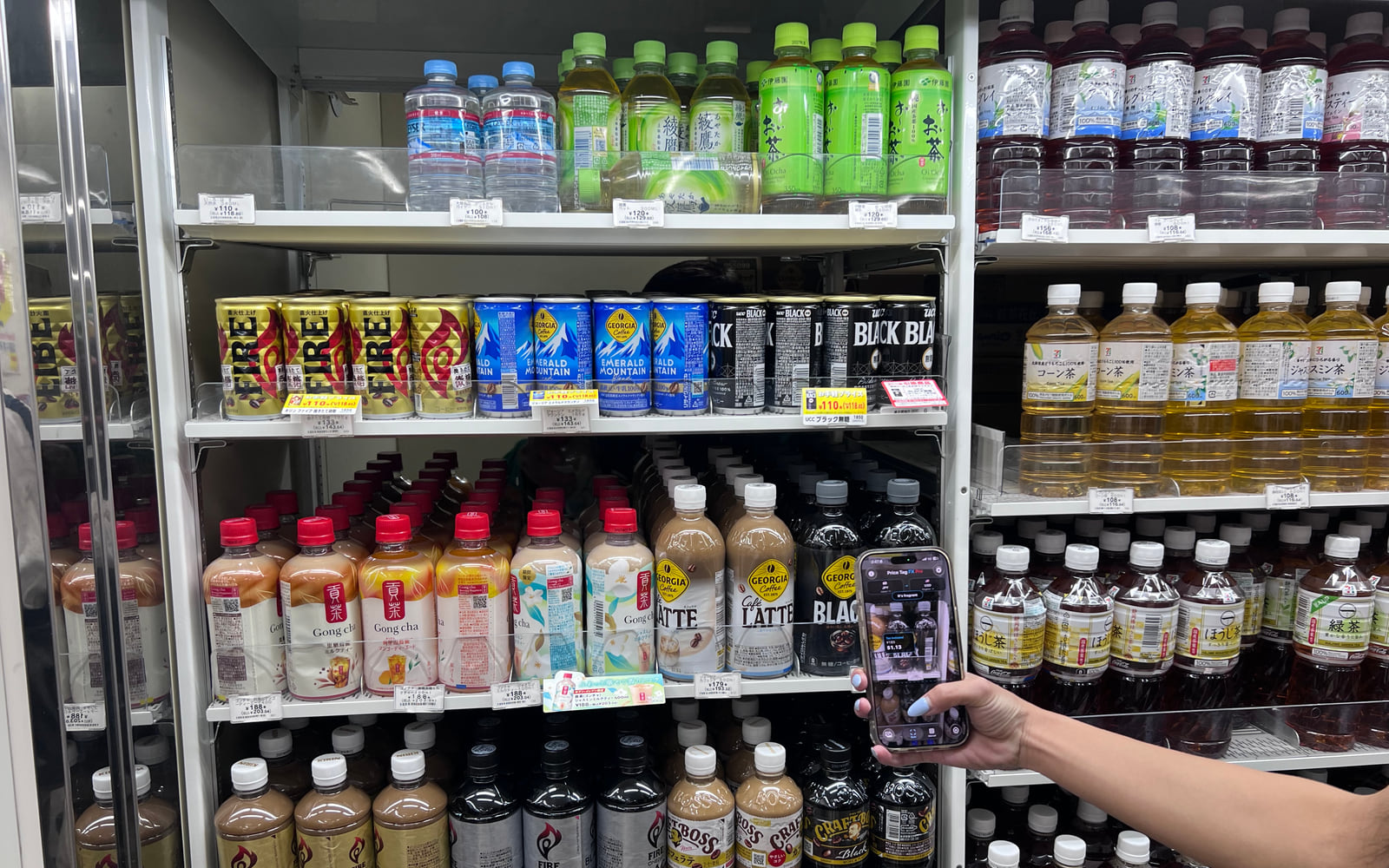
Traveler holding an iPhone over a foreign supermarket shelf price tag
Choose the local market first, then frame one clear price tag and compare the estimate with the checkout display.

Guide 01

How to scan foreign price tags with an iPhone

Price Tag FX lets you choose the market where you are shopping, point your iPhone at a visible price tag, and see the app’s best estimate of the printed price, its likely retail role, and a conversion into your chosen currency. You can pause the live camera for a steadier read or choose an existing photo. The OCR and price parsing are helpful rather than authoritative: difficult lighting, unfamiliar layouts, membership conditions, tax labels, and stale exchange rates can all affect the result, so confirm the amount shown by the store at checkout.

Read the guide
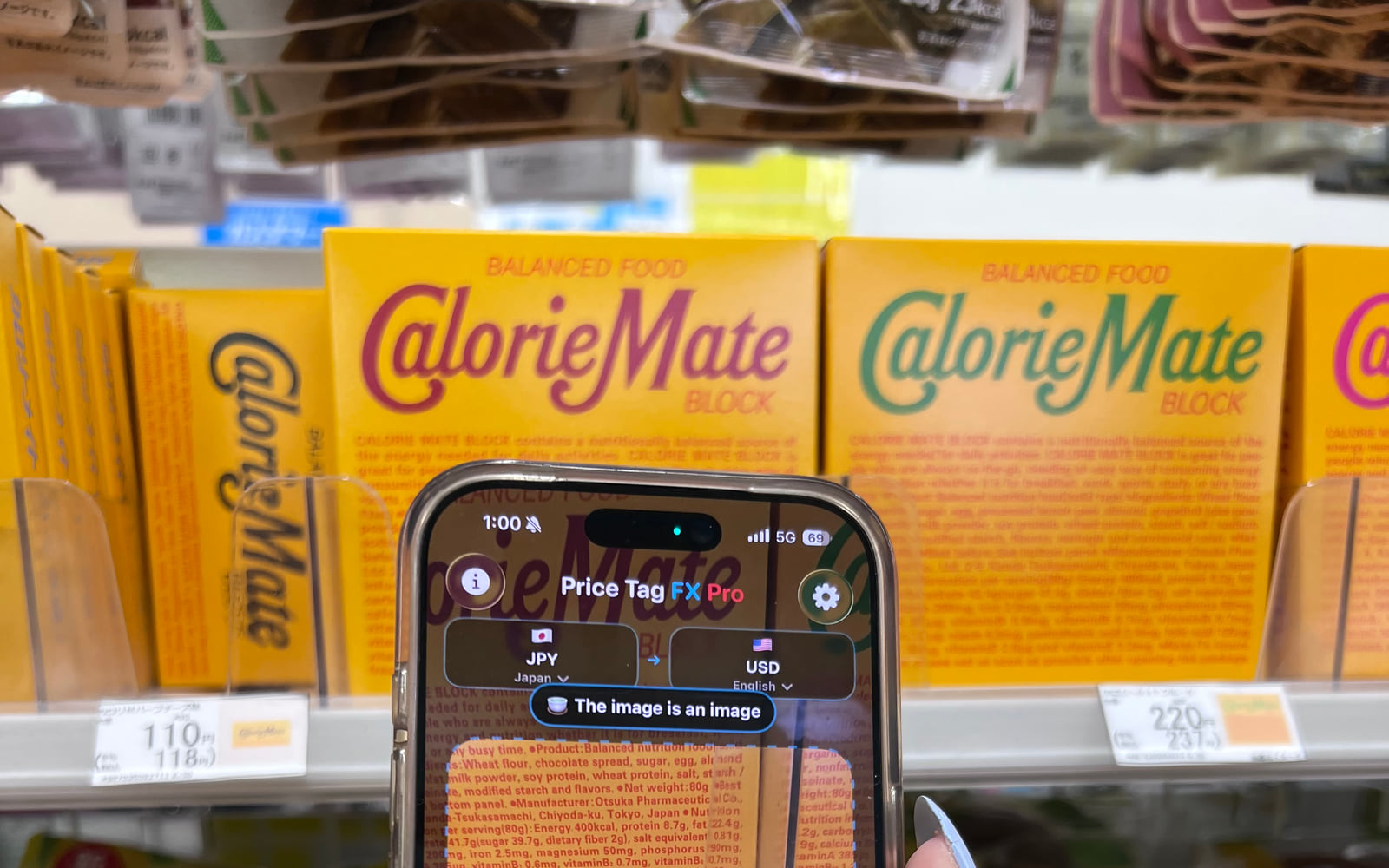
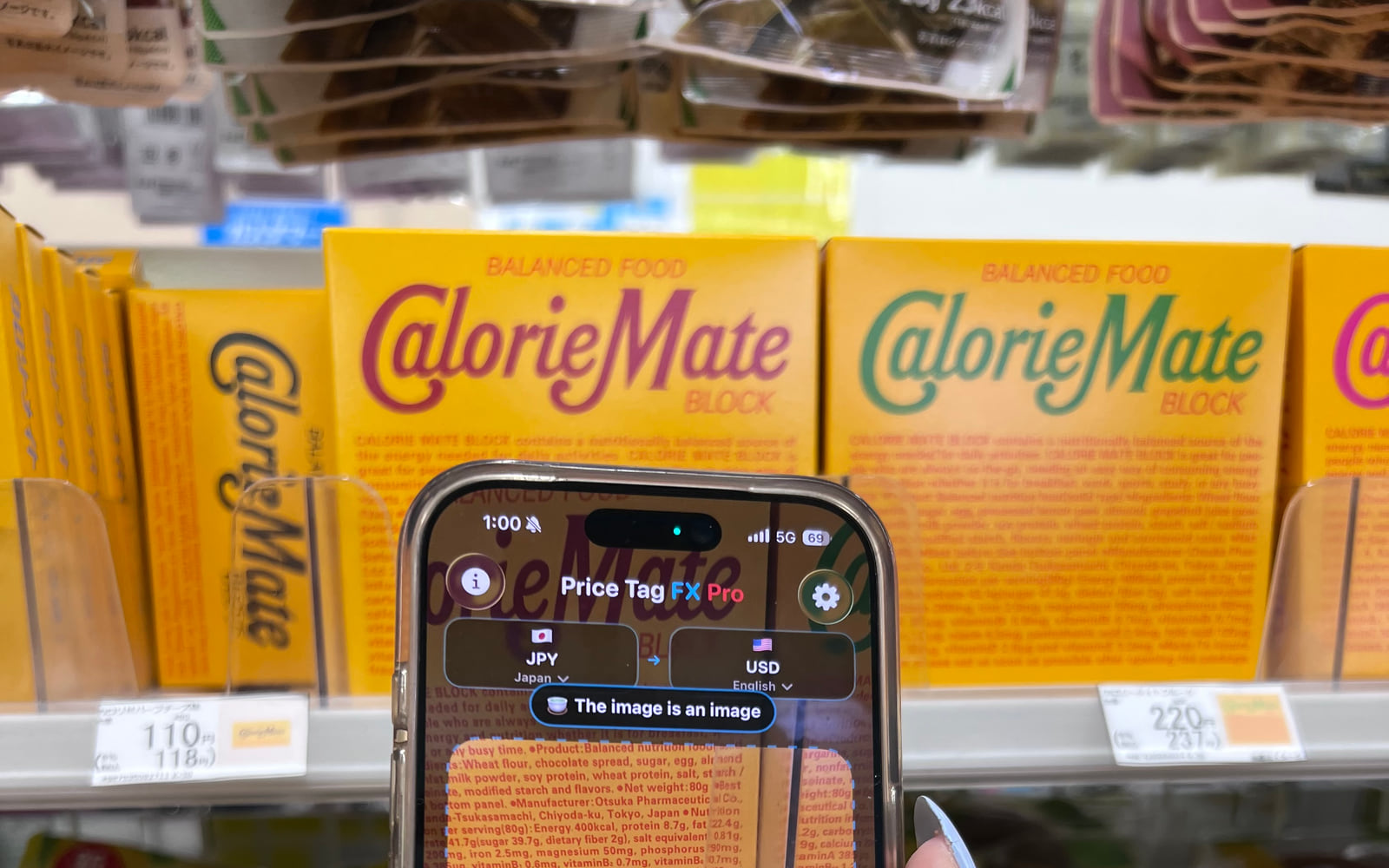
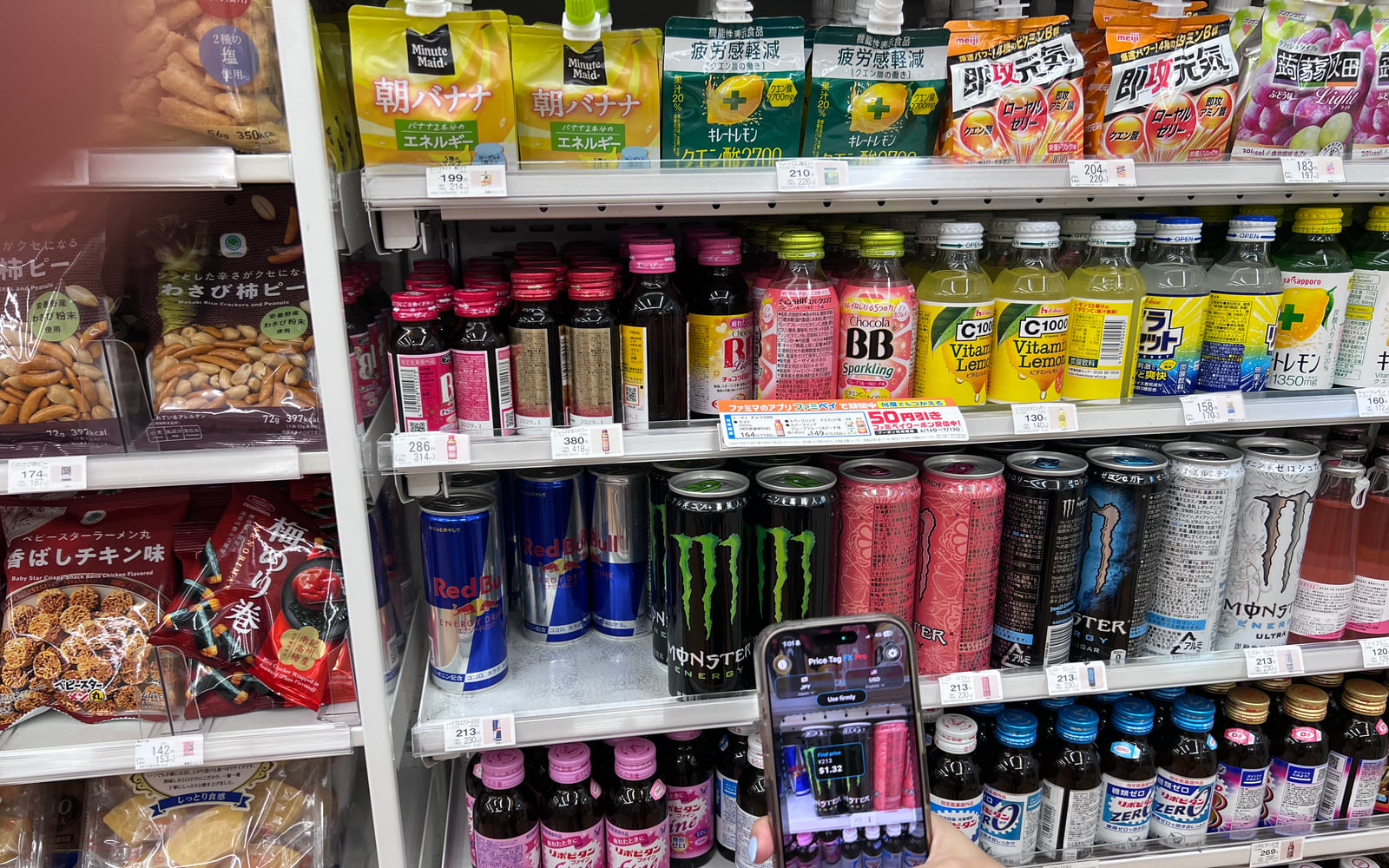
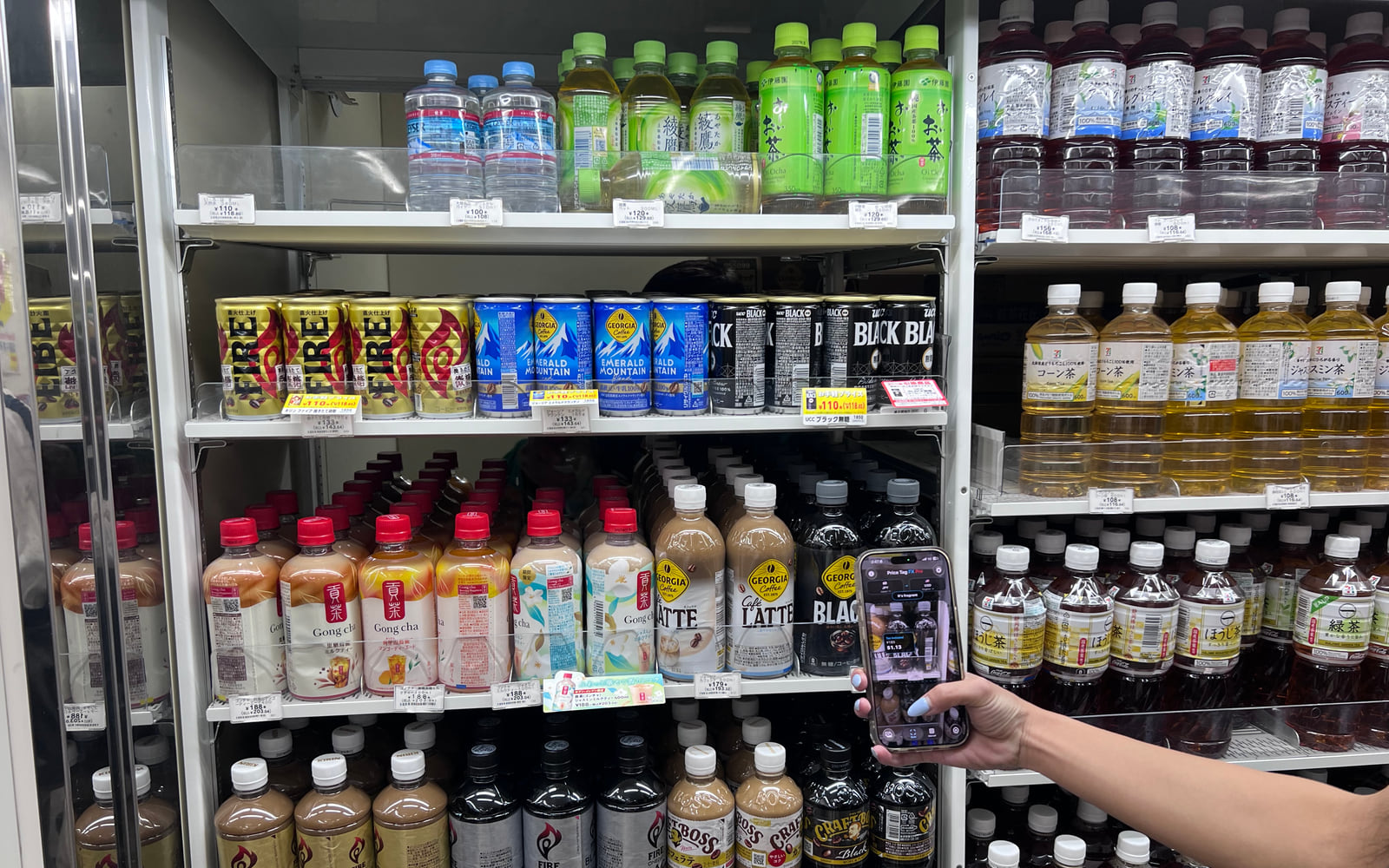
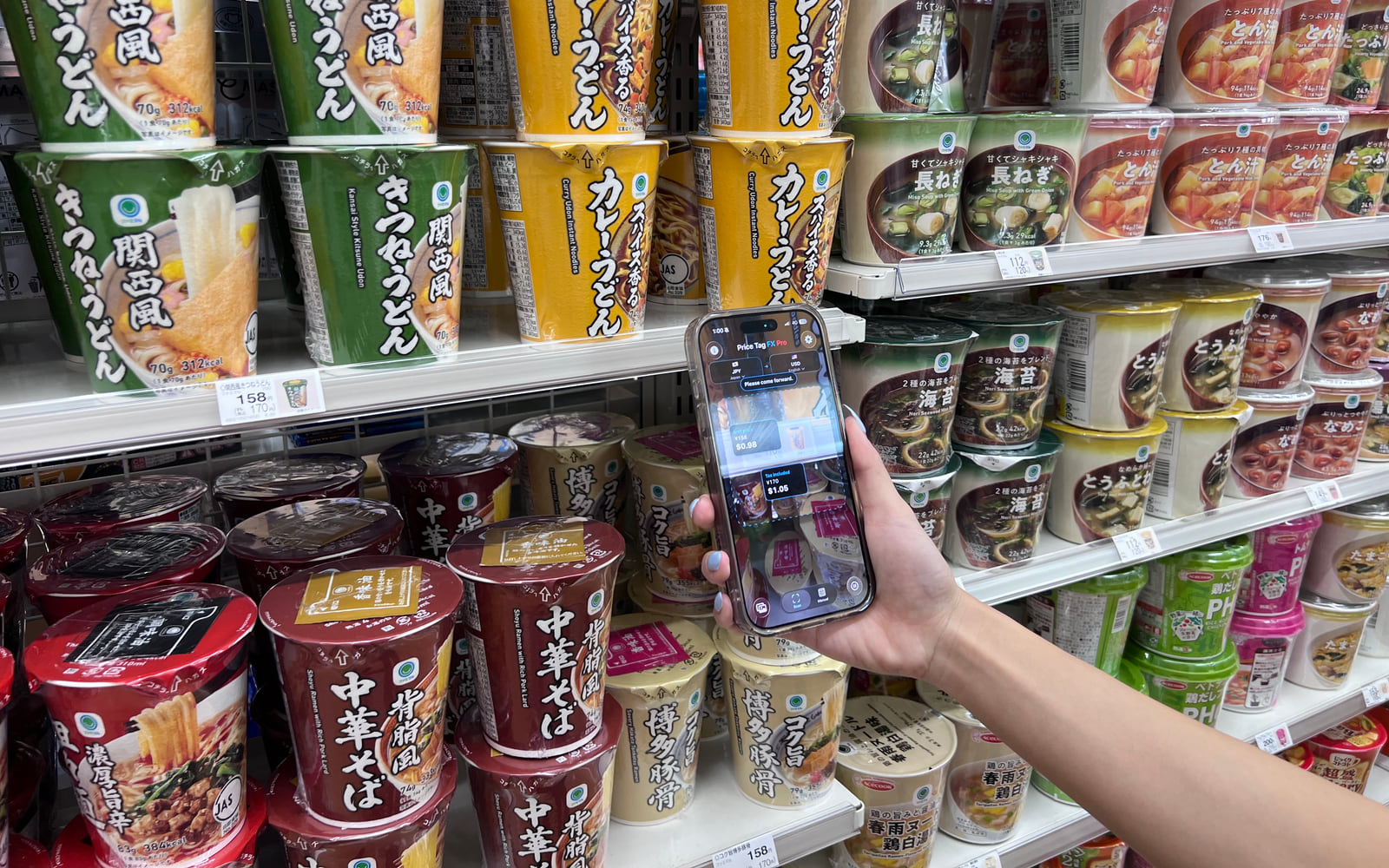
Japanese supermarket shelf labels showing yen prices below packaged food
Japanese tags may show base, tax-included, sale, and unit prices together; keep the surrounding terms in the frame.

Guide 02

How to understand Japanese price tags while shopping

Japanese shelf labels often place several yen amounts and short retail terms close together. Price Tag FX can use Japan as the source market, recognize visible yen-marked amounts, match common local price terms, and rank a likely price for conversion. Look for labels such as 税込 for tax included, 税抜 for tax excluded, 通常価格 for regular price, 特価 for a special price, and 会員価格 for a member price. These are contextual clues, not a checkout guarantee; store conditions, quantity rules, and OCR mistakes still require verification.

Read the guide
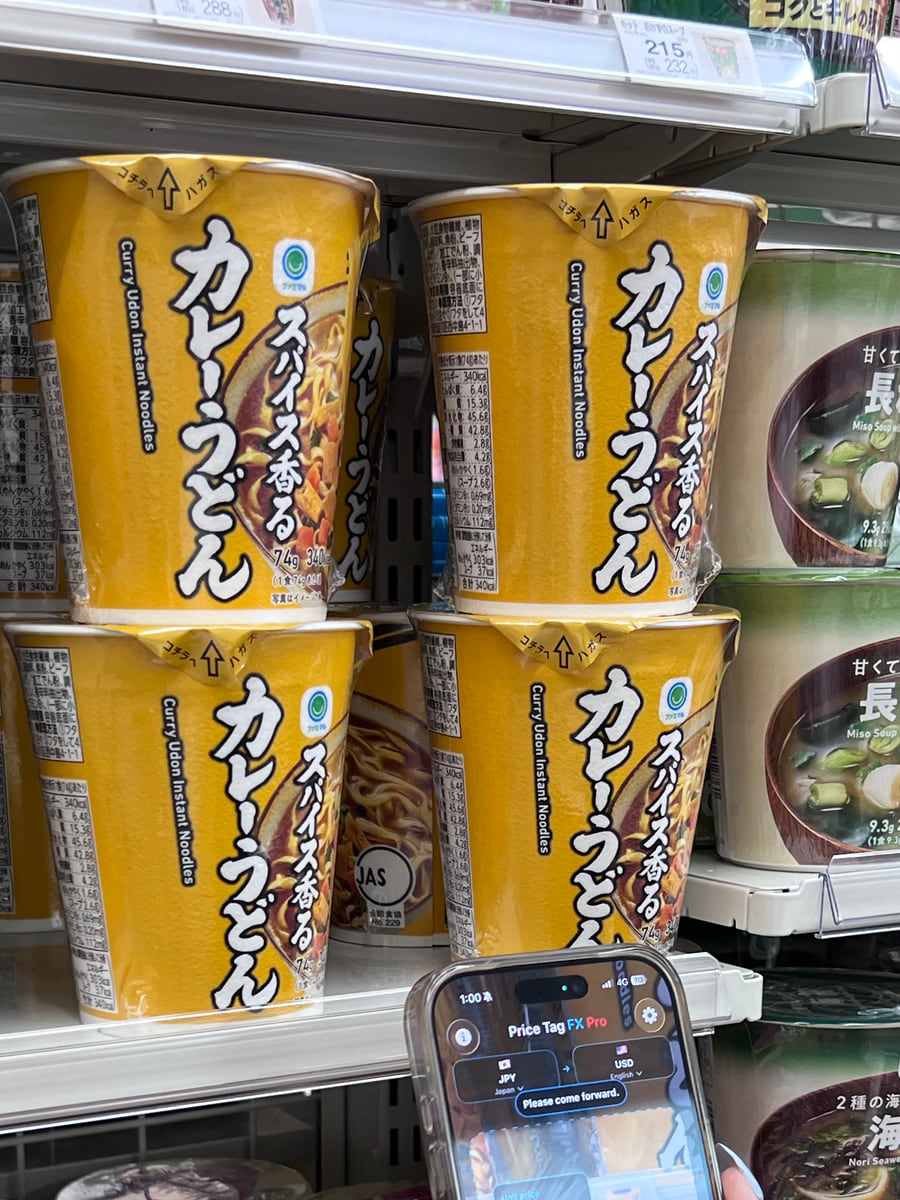
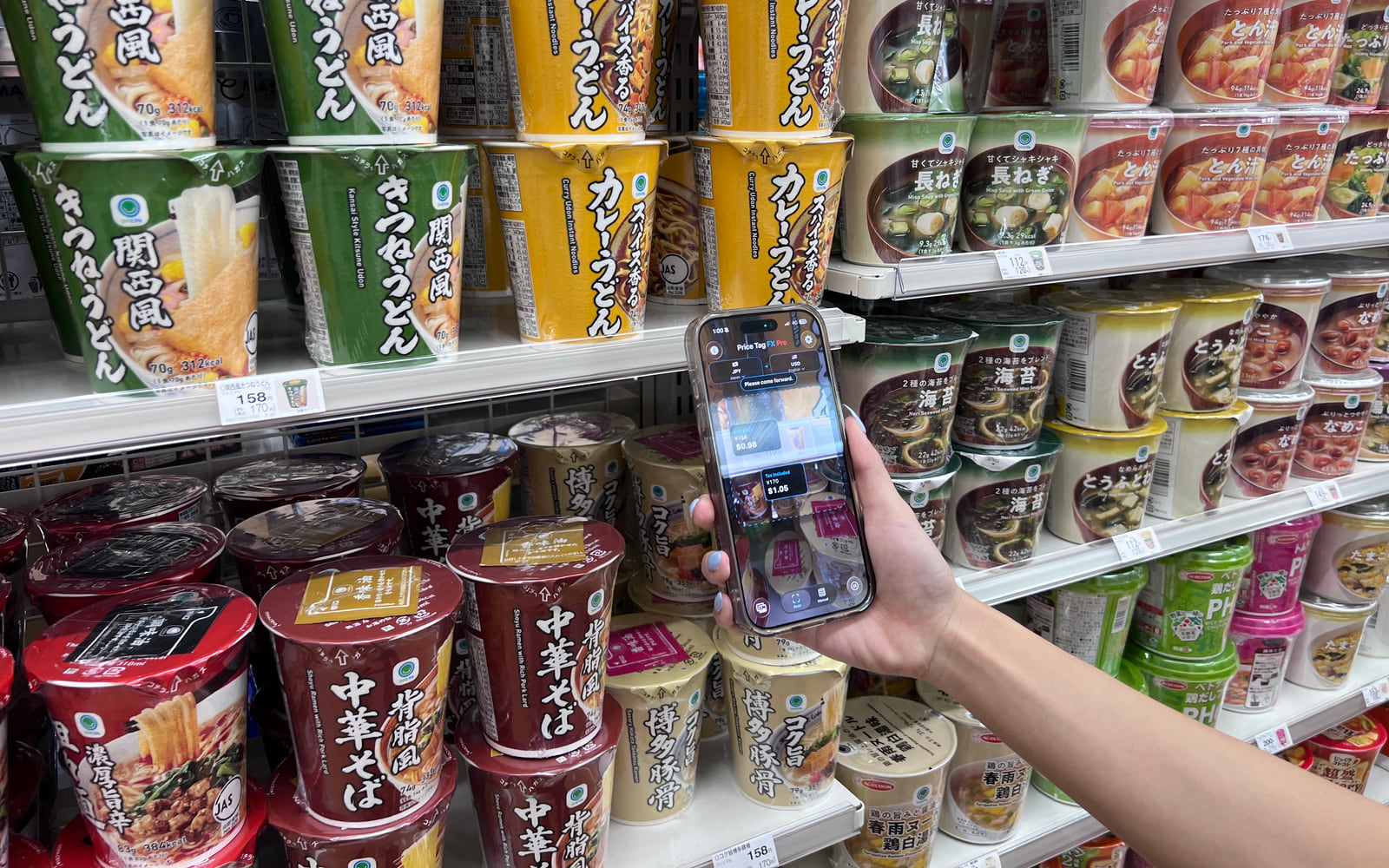
Japanese shelf tag showing separate tax-exclusive and tax-included yen amounts
Keep both amounts and their 税込 or 税抜 labels visible so the app can compare their roles.

Guide 03

Tax included vs tax excluded on Japanese price tags

On a Japanese price tag, 税込 or 税込価格 identifies a tax-included amount, while 税抜, 税別, or 本体価格 identifies an amount before consumption tax. Japanese total-price display rules generally require a tax-included price when a business presents a price to consumers, but a tag may also show the pre-tax figure for comparison. Price Tag FX can classify visible terms and favor a likely tax-included total, yet OCR, unusual layouts, reduced-rate items, promotions, and store-specific conditions can still produce an imperfect result. Use the scan as a guide and confirm the register amount.

Read the guide
Japanese supermarket shelf with regular, sale, member, and unit price labels
A lower amount may depend on membership or quantity; scan the words as well as the number.

Guide 04

Sale, member, regular, unit, and multibuy prices in Japan

Japanese retail labels can show several valid prices for different conditions. A regular price is a reference, a sale or special price may be temporary, a member price may require eligibility, a unit price describes a stated quantity, and a multibuy offer may require purchasing more than one item. Price Tag FX can recognize curated terms, rank likely price candidates, and translate supported price concepts locally. It cannot confirm that you qualify, calculate every bundle, or know what the register will apply. Keep the condition in frame and verify the checkout amount and quantity rule.

Read the guide
Traveler comparing a foreign shelf price with a currency estimate on an iPhone
Compare in the store’s currency first, then use the converted figure as a travel-budget estimate.

Guide 05

How to convert prices while shopping abroad

To convert a price while shopping abroad, set the country where the item is sold, choose your comparison currency, then either scan the tag or enter the amount in the Manual tab. Price Tag FX converts with a locally cached Frankfurter reference-rate snapshot when the currency pair is covered. The result is an estimate for orientation, not the amount guaranteed by a bank, card network, cash exchange, or merchant. Verify the original checkout price, review fees, and treat any offer to pay in your home currency as a separate decision.

Read the guide
Portrait iPhone screen choosing a saved retail price-tag photo for scanning
A clear saved image can help with small text, but result presentation still follows the scanner’s current access policy.

Guide 06

How to scan a saved price-tag photo on iPhone

In Price Tag FX, open the Scan tab, tap Photo, and choose an image from the system photo picker. The app normalizes the selected image and sends it through the same accurate OCR, price parsing, and cached conversion pipeline used by Freeze mode. The selected image is processed locally by this code path rather than uploaded for cloud OCR. Photo results do not consume the successful live-scan counter, but revealing a detected price still follows the current scanner access decision, so an exhausted free user can see a locked result until access becomes available or Pro is active.

Read the guide
Diagram-like photo of an iPhone recognizing text on a price tag locally
Vision recognizes text on the iPhone; local parsing then ranks likely prices before cached conversion.

Guide 07

How on-device price-tag OCR works and what stays private

Price Tag FX runs text recognition on camera frames and selected photos with Apple Vision on the iPhone. It then uses local price-term dictionaries and parsing rules to identify currency-marked amounts and likely retail roles. It does not send images or recognized text to a cloud OCR provider. Optional product-title translation is also on device and appears only when Apple’s exact source-target pair is already installed. The app still uses network services for exchange rates, analytics, crash diagnostics, optional MapKit market suggestions, and StoreKit, so privacy claims should distinguish local scan-content processing from general app connectivity. Product-title translation requires iOS 26 or later.

Read the guide
Traveler viewing cached currency rate information on an iPhone without mobile service
Download a usable rate snapshot before losing connectivity and inspect its age before relying on the estimate.

Guide 08

How cached exchange rates work when you travel

Price Tag FX stores successful Frankfurter rate downloads on the iPhone by base currency. When a cached snapshot covers the source and target currencies, the app can calculate a conversion locally without fetching a rate at that moment. It tries to warm the selected scanner-market rates once per session and refreshes when usable cached data is older than 12 hours. Rates are shown as stale from 14 days, but a covered stale snapshot can still return an estimate. Offline conversion therefore works only after a successful download and never guarantees a current bank or checkout rate.

Read the guide
iPhone scanning a difficult reflective shelf label with troubleshooting callouts
Work from capture to market, parsing, access, and rates; each stage has a different fix.

Guide 09

Price-tag scan troubleshooting on iPhone

When a price-tag scan fails, diagnose the stage instead of repeatedly aiming at the same image. First confirm camera or photo access, then improve focus and framing, verify the source market, check whether OCR recognized an explicit currency-marked amount, inspect price-role warnings, and finally confirm that a cached rate covers the currency pair. Missing product-title translation is separate from price parsing, and a processed photo can still have its result hidden by the scanner access gate. Price Tag FX produces likely estimates, so a persistent mismatch should end with checkout verification rather than forced confidence.

Read the guide

Put the guide in your pocket

Try Price Tag FX on the next shelf.

Download on the App Store